
Scale
Control the export size of your images. Set one scale for everything or adjust per image.
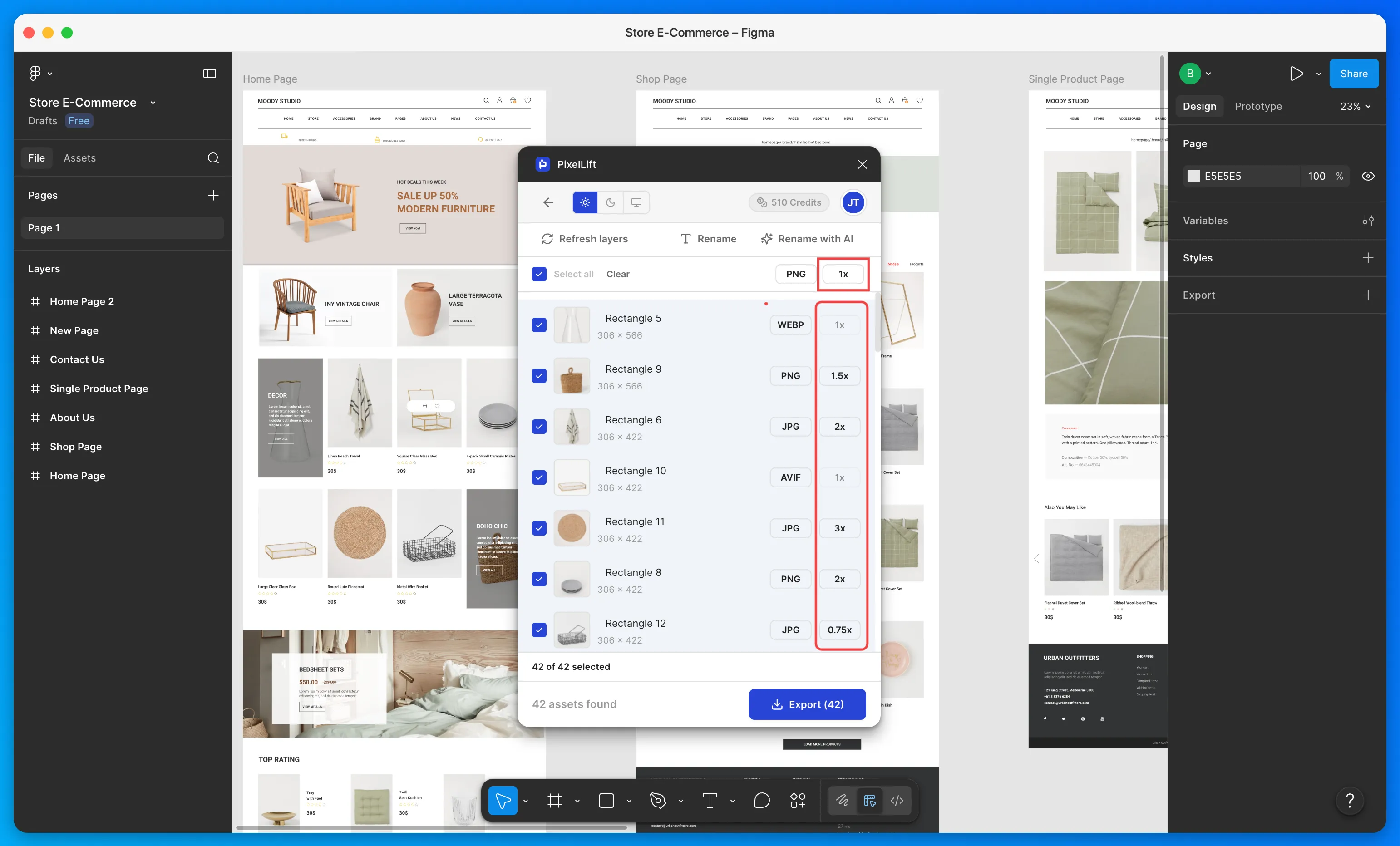
PixelLift lets you set the export scale for your images. Use a universal scale to apply the same setting across all images at once, or override individual images with their own scale.
How scale works
Scale controls the resolution of the exported image relative to its size in Figma.
- 1x exports the image at its exact Figma size. This is the default.
- 2x doubles the resolution. Useful for retina screens.
- 4x exports at four times the size. Larger file, more detail.
- 0.5x or 0.75x exports smaller than the original. Useful when you need a lightweight thumbnail or preview image.
Scale applies to all formats: PNG, JPG, WebP, AVIF, and SVG.
Set a universal scale
The universal scale dropdown sits at the top of the plugin. Changing it updates every image that does not already have a per-image scale set.
Available options: 0.5x, 0.75x, 1x, 1.5x, 2x, 3x, 4x
The default is 1x.
Set scale per image
Each image in the list has its own scale dropdown. Use this when one image needs a different resolution from the rest.
A per-image scale is not overridden when you change the universal scale. If you set an image to 2x and then change the universal scale to 3x, that image stays at 2x.
Which scale should I use?
| Use case | Recommended scale |
|---|---|
| Standard web images | 1x |
| Retina / high-DPI screens | 2x |
| Print or very large displays | 3x or 4x |
| Thumbnails or previews | 0.5x or 0.75x |