
Bulk Export
Export multiple images from your Figma layers in one go.
Bulk Export lets you scan any layer and export all images inside it at once. No more exporting one by one.
Select Your Layers
Select the layers you want to export from the Figma canvas. You can select a main frame or any nested frame. PixelLift will fetch all images inside your selection, including images across all pages inside that frame.
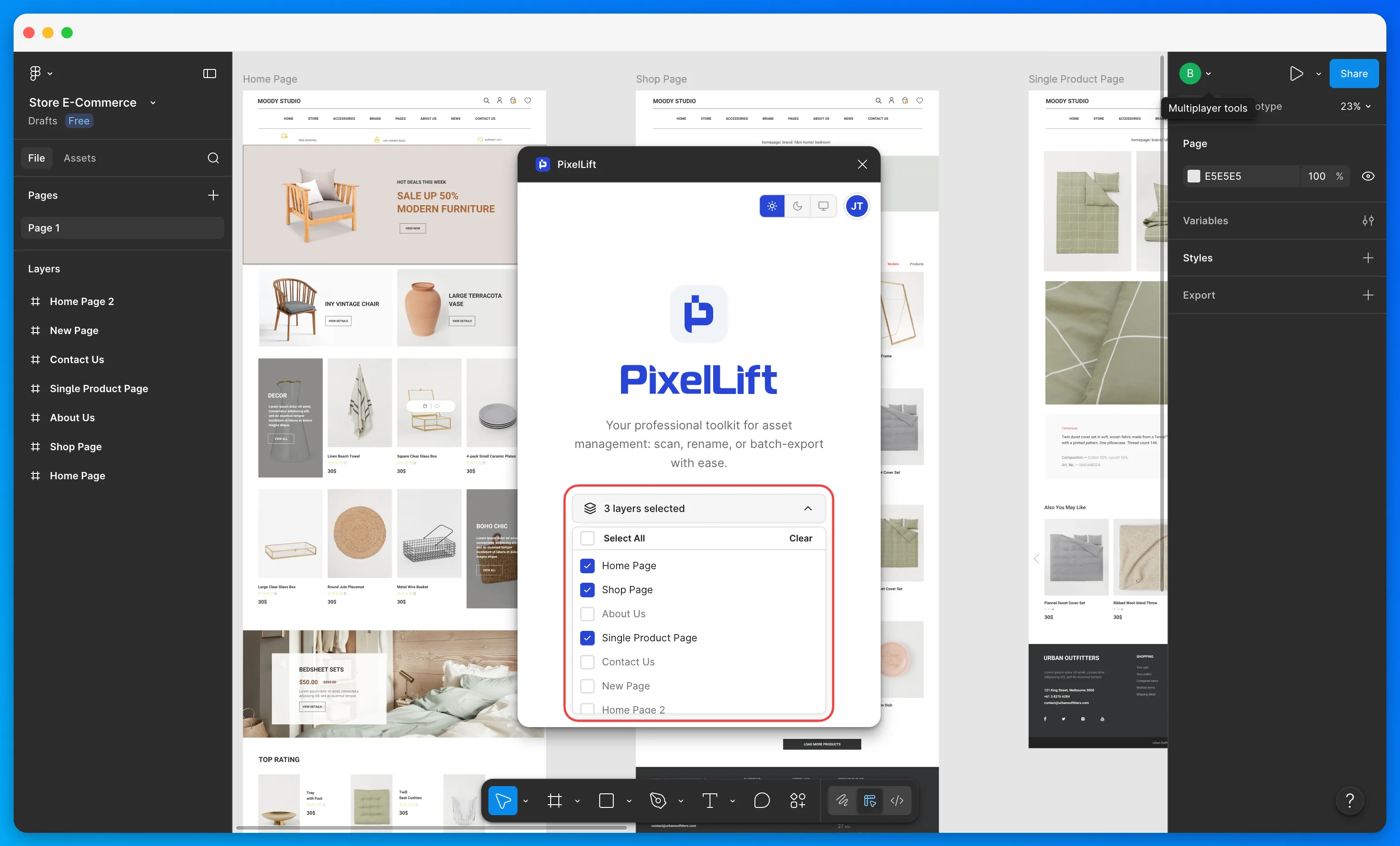
Choose Layers in the Plugin
Open PixelLift from Plugins > PixelLift. Use the Choose layers dropdown to confirm your selection.
Scan Your Assets
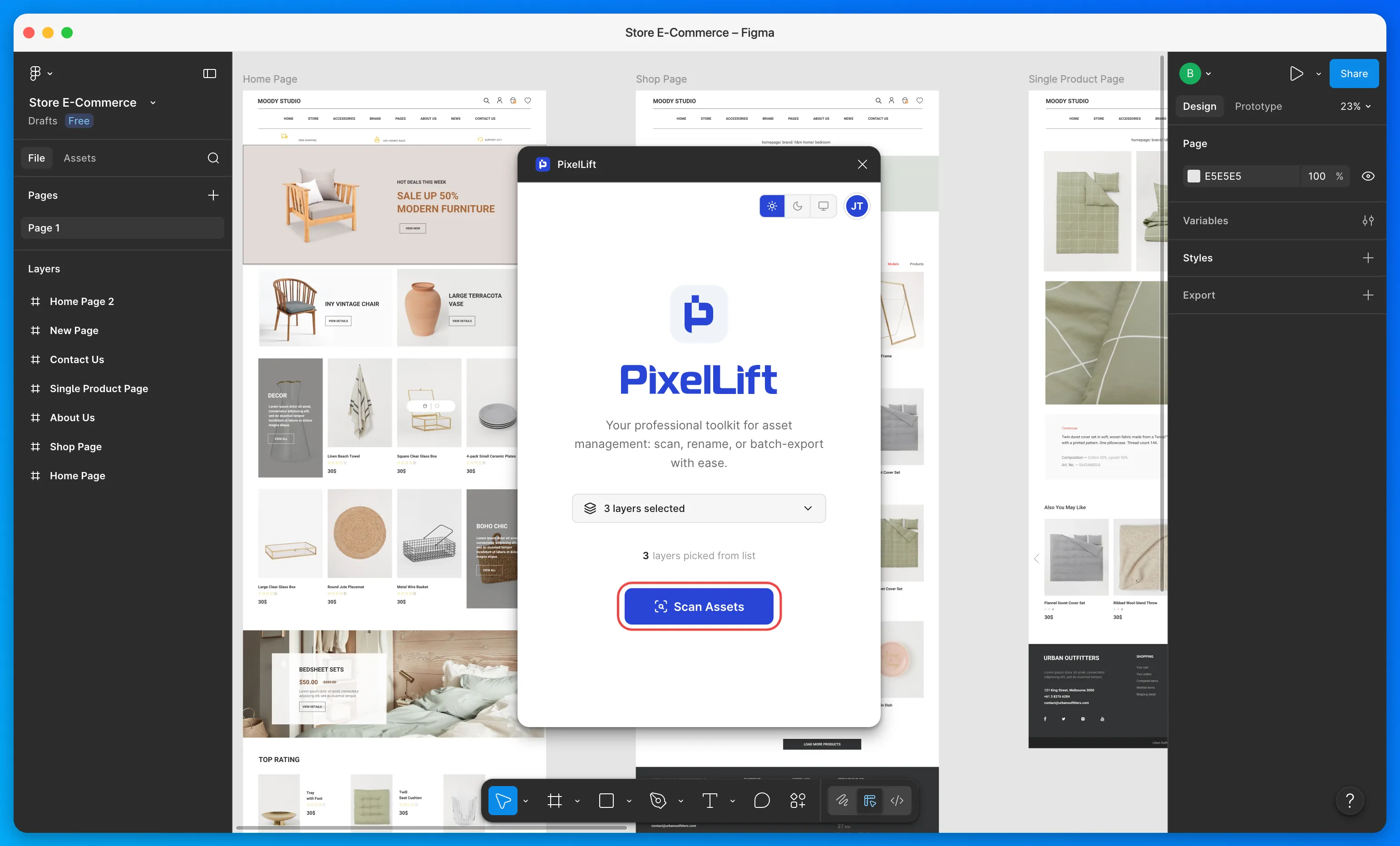
Click the Scan Assets button. PixelLift will scan your selected layers and list all exportable images.
Select Images
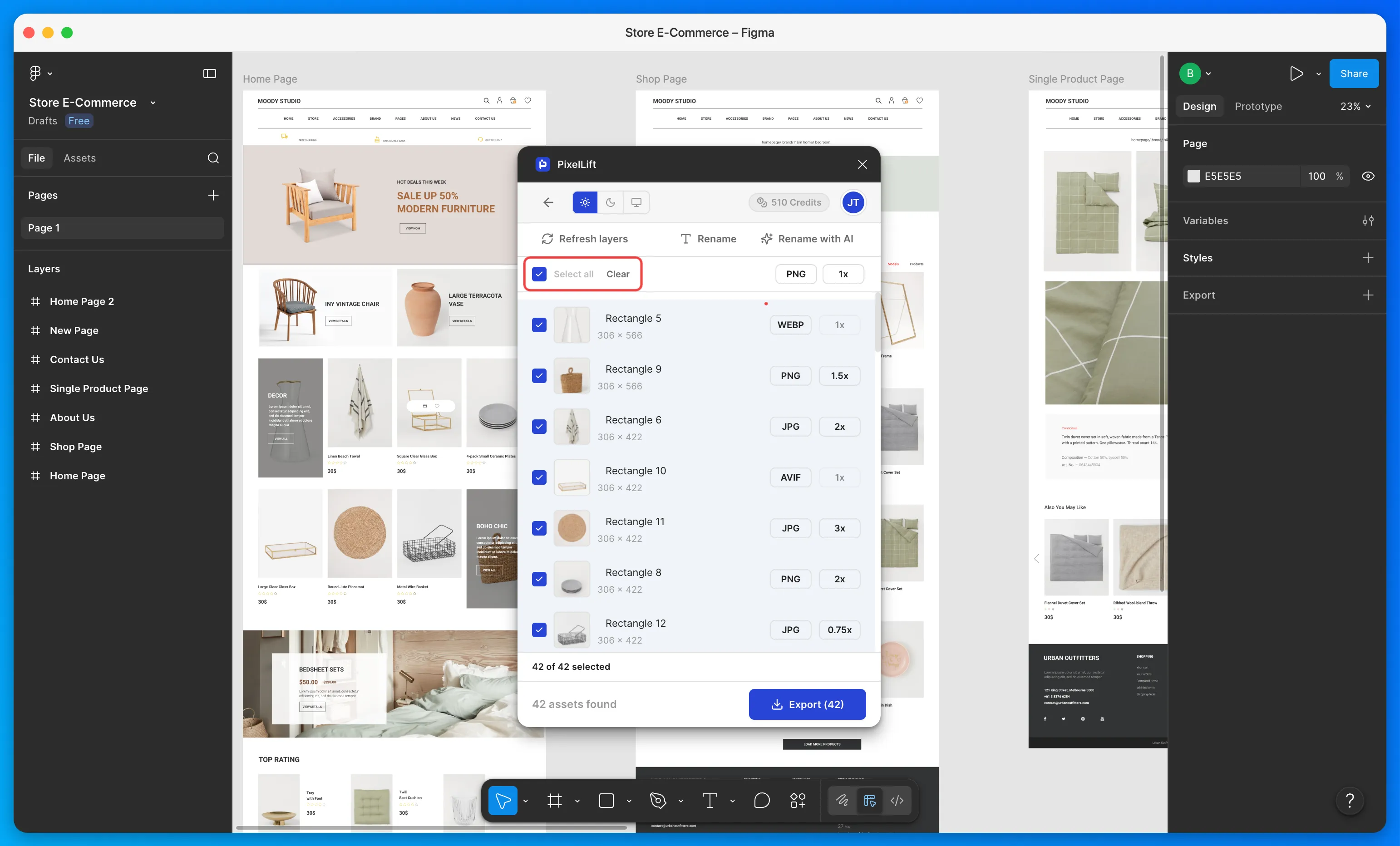
Once scanned, you will see all fetched images listed in the plugin. Use Select All to grab everything or pick only the ones you need.
Export
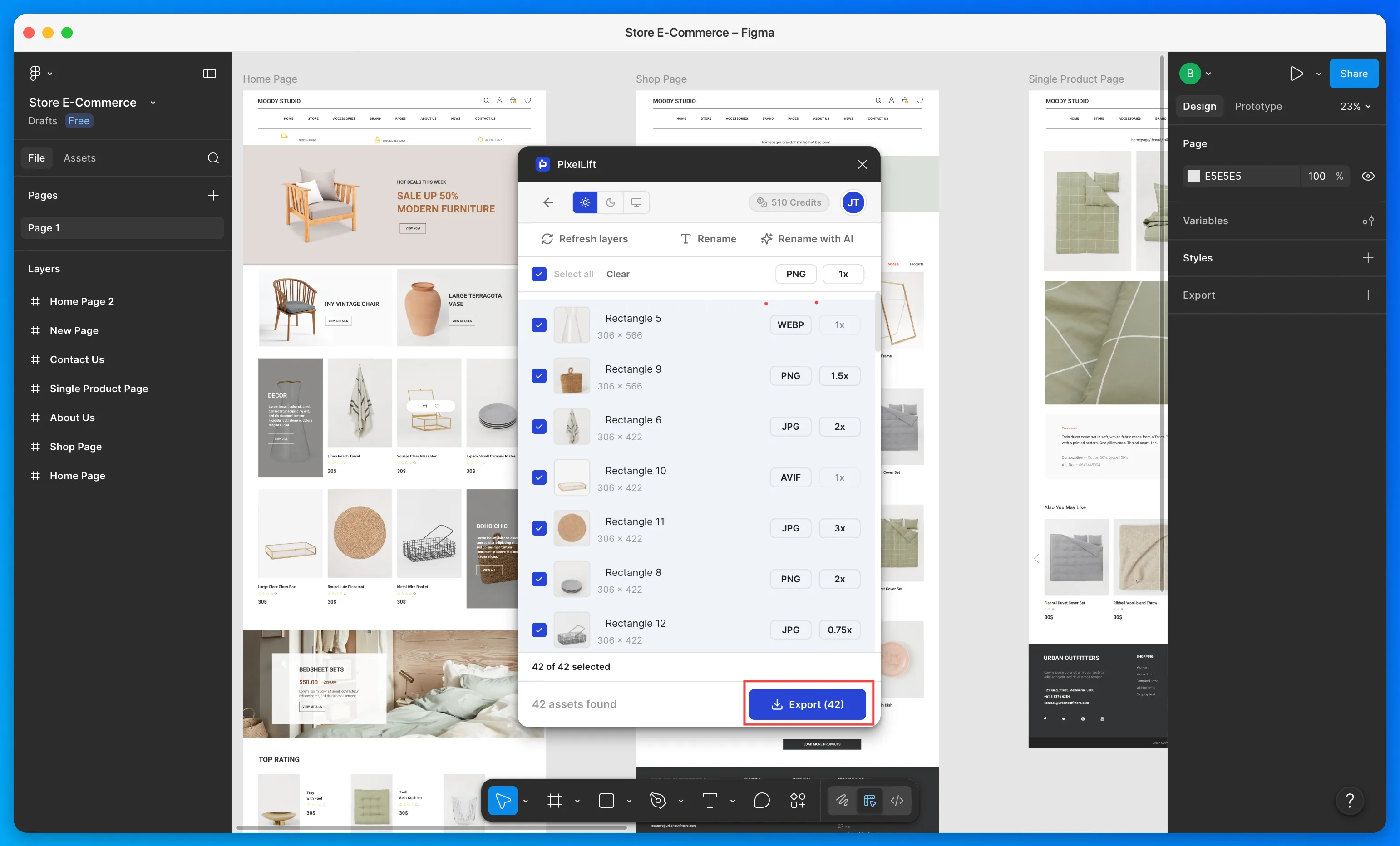
Configure your format and scale settings, then hit Export. Your images will download as a ZIP file to a folder of your choice.
PixelLift scans all images across all pages inside your selected frame, not just the top level.